Budget without connecting your bank
You can run a real budget without ever linking a bank account. Compass works from the statement files you download yourself: sign in to your bank's own website as usual, export your transactions as CSV or Excel, and import the file. Compass never asks for a bank login and has no feature that connects to a bank, so there's no password to hand over and no live connection to break.
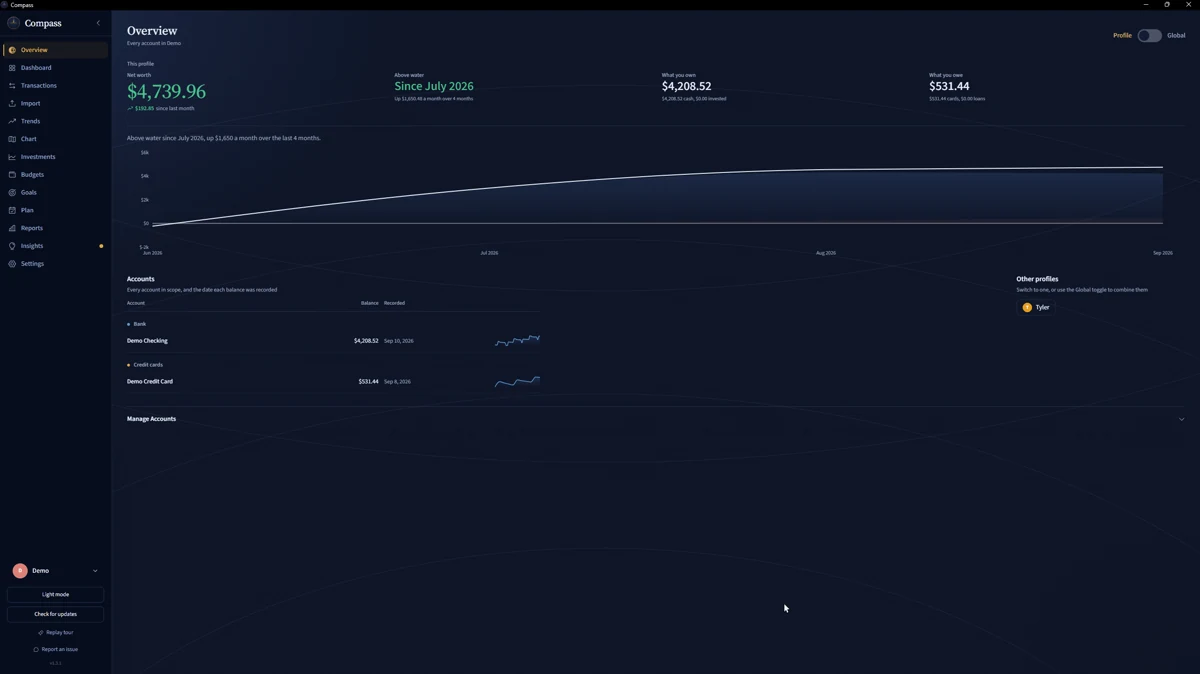
Saying no to linking shouldn't mean budgeting blind
Linking an account usually means handing your bank login, or an ongoing access grant, to the app or to a data provider working behind it. That access keeps running long after you've stopped thinking about it, and you're trusting a chain of companies you've never heard of to look after it.
So plenty of careful people just don't link. And then what? The spreadsheet gets abandoned by the third month, the banking app only shows one account, and the first warning that money is tight is a declined card or an overdraft fee.
Refusing to share your password was the right call. Giving up on knowing where your money goes is the expensive part.
The routine: one file in, the whole picture out
- Download a statement. Sign in to your bank or card issuer's website and look for an export or download option near your account activity. Choose CSV, or Excel if that's what they offer. Compass never sees that login.
- Import it. Open Import, pick the statement type and choose the file. Confirm the suggested columns, check the preview and import. Save the layout and the next file from that bank fills itself in. Overlapping dates are fine: duplicates are caught and counted, not added twice.
- Check the categories. Built-in rules sort common merchants. Fix any strays, save the fix as a rule, and it applies to every import after that.
- Look ahead. Open the Dashboard for this month, or Plan for what's coming before your next paycheck.
Do it when a statement closes, on payday, or whenever you want to catch up. Want the screen-by-screen version? The import guide has it, and the CSV budgeting page covers messy files.
Plan fills the gap between imports
Statements are history. Bills and paychecks are the future, and that's what Plan is for.
Add your upcoming bills and income once. Plan uses them, together with your spending history, to forecast spendable cash to your next paycheck. You get a safe-to-spend figure and your projected lowest balance before payday, and you can read the forecast as a line, as a money map, or as a calendar where every day shows its end-of-day balance, shaded amber below your cushion and red below zero. If your latest imported balance is out of date or missing, Plan says so instead of guessing.
Try a what-if before you commit: a spending cut, extra income, a skipped paycheck or a one-off expense. None of it writes a real transaction. Scheduled bills and income feed the forecast and nothing else.
What you trade for not linking
Your numbers are as current as your last import, not real-time. Forecasts need at least two months of history and cover checking and debit accounts, not projected credit card balances. And everything depends on the statements you bring in, so verify anything important against your bank. For most people who won't link, that's a fair trade for keeping the password to themselves.
Questions people ask
Does Compass ever ask for my bank password?
No. Compass has no live bank connections and no feature that connects to a bank. You download statements yourself and import the files.
How often should I import?
Whenever you want your numbers current. Importing when each statement closes, or on payday, keeps the Dashboard and Plan close to reality. Overlapping files are fine because duplicates are detected.
My bank only gives me PDF statements. Can I still use Compass?
Compass doesn't import arbitrary PDF bank statements. Many banks also offer a CSV or Excel download near your account activity, so look for an export or download option there. PDF import is limited to supported investment statements from Principal 401(k) and E*TRADE / Morgan Stanley.
Can it warn me before I run short?
Yes, within the limits of what you've imported. Plan projects your lowest balance before the next paycheck and flags days below your cushion or below zero, and Insights surfaces overdraft alerts and budget warnings. Forecasts need at least two months of history.
What about credit cards and loans?
Credit card statements import as CSV or Excel, and card payments are treated as transfers so they aren't counted twice. For loans, import a supported loan statement or enter the rate and minimum payment yourself, then compare payoff orders in Plan.
Is it really free?
Yes. No subscription, no paid tier and no account. Compass is MIT-licensed open source.
Keep your password. Get the budget anyway.
Download Compass and import the statement you can grab from your bank's website today. Or open Demo Mode and see how it works with sample data first.
Curious how the data is protected? Read about the private budgeting app.