A budgeting app built around your bank's CSV file
Compass is a free budgeting app for Windows, with a macOS beta, that works from the CSV or Excel (.xlsx) statement your bank or card issuer lets you download. It suggests which columns hold the date, description and amount, shows a preview before anything is imported, catches duplicates and sorts merchants into categories with rules you can check. Save the layout once and next month's file from that bank takes fewer clicks.
The CSV is the easy part. Trusting the numbers is harder.
Every bank exports a little differently. One file has a single amount column where spending is negative. The next has separate Debit and Credit columns. A third tacks "CR" onto refunds, writes dates as 20260905, or uses a comma for the decimal point.
Paste those into a spreadsheet and the budget works until it doesn't. A sign flips and your grocery spending turns into income. You download a statement that overlaps last month's by a week and seven days get counted twice. Your credit card payment shows up as spending on the checking file and again as the card purchases themselves.
The worst part is that it still looks right. A budget built on a backwards sign or a doubled week is worse than no budget, because you'll make decisions with it.
How Compass reads the file for you
Columns suggested, then confirmed by you
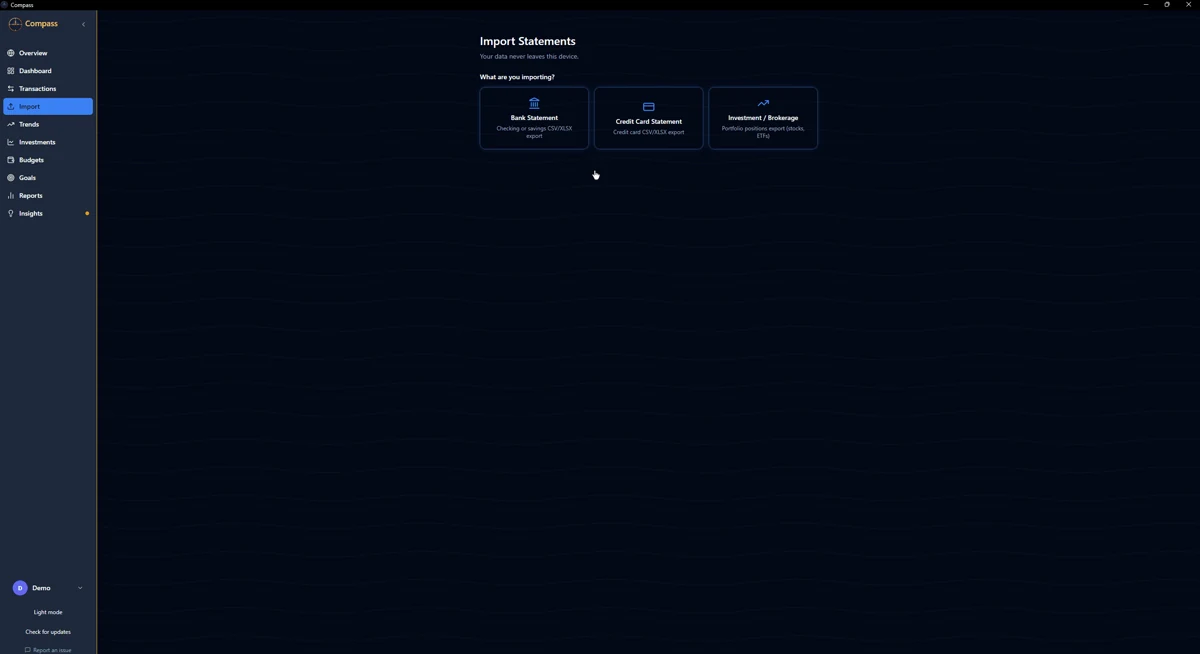
Open Import, pick bank, credit card or investment, and choose the file. Compass suggests the date, description and amount columns, or fills them in from a bank preset or a layout you saved last time. You confirm each one against your header row.
Every amount layout banks actually use
One signed amount column, one amount column plus a Debit/Credit label column, or separate Debit and Credit columns: all three work. Every previewed row is labeled money in or money out (purchase or payment on a card file), and you can flip the signs if your bank records them the other way round. It also reads two-digit years like 3/5/24, compact dates like 20260905, trailing minus signs, CR and DR suffixes and European decimals like 1.234,56.
A summary that admits what it skipped
Before you import, there's a preview. After, the summary keeps three counts apart: rows left out because they had no usable date and amount (headers, totals, memo lines), duplicates it recognized as already imported, and errors. A missing real transaction stands out instead of hiding.
Your bank, remembered
Save the layout and the next file from that bank fills itself in. Batch import takes several files at once.
Rules you can watch working before you save them
Built-in rules categorize common merchants as you import. When one lands in the wrong place, fix it and save the fix as a rule. Before you save, a live preview shows how many of your last 1,000 transactions the rule matches, with the matching text marked. There's also a Review categories panel in the import preview, grouped by merchant with counts and totals, so you can set categories for a whole group before anything is saved.
No dollar counted twice
Transfers and anything in the Excluded category never count as income or spending, and credit card payments are treated as transfers.
Then it becomes a budget
Once the transactions are in, set weekly or monthly limits, with optional rollover, and watch the on-pace projection. Trends & Reports compares periods and breaks spending down by category, merchant and recurring charges. If you came here looking for a bank statement CSV analyzer, that's the part you want: the Ghost Subscription Detector finds charges that repeat with the same description and amount across two or more months, and totals what they cost per month and per year. And when you need the data back out, export the filtered view as CSV.
Bank and card files never get uploaded anywhere for this. They're read on your computer and the results are stored in an encrypted database there. More on that on the private budgeting page.
Formats it doesn't read
Compass doesn't import OFX or QIF files, or arbitrary PDF bank statements. If your bank offers a choice, pick CSV or Excel. If a workbook won't import, save the statement sheet as a CSV copy and import that, keeping the original untouched. The step-by-step import guide covers every screen.
Questions people ask
Which file formats can I import?
Bank and credit card statements import as CSV files or Excel (.xlsx) workbooks. Compass also reads investment exports from Wells Fargo Advisors, Fidelity and Thrivent, PDF statements from Principal 401(k) and E*TRADE / Morgan Stanley, and Ledger Live crypto exports. It doesn't import OFX, QIF or arbitrary PDF bank statements.
My bank puts debits and credits in separate columns. Will that work?
Yes. When the headers say Debit and Credit (or Debit Amount and Credit Amount), Compass detects both columns and maps them. Pairs with other names, like Purchases and Payments, aren't detected automatically, so choose the two-column option yourself.
What happens if two statements overlap?
Duplicate detection checks each import against what's already there. Duplicates are counted on the import summary separately from skipped rows and errors.
Do I need to clean up the CSV in a spreadsheet first?
No. Compass leaves out rows without a usable date and amount, such as headers, totals and memo lines, and tells you how many it skipped. Keep the file exactly as your bank produced it.
Will Compass get my categories right?
Built-in rules handle common merchants, and every correction you save as a rule applies to later imports. You can preview what a rule matches before saving it, and review categories by merchant before an import is saved.
Can I try it without using my own statement?
Yes. Demo Mode loads sample data so you can explore every page first.
Bring in last month's statement and see where it went
Download Compass, export a CSV from your bank's website, and import it. Demo Mode is there if you'd rather look around first.
Don't want to link your bank at all? Read budgeting without a bank connection.