How to import a bank CSV or Excel statement into Compass
Updated · Written for Compass 1.3.5 on Windows and the macOS beta
Download your transactions from your bank or card issuer as a CSV file or an Excel (.xlsx) workbook. In Compass, open Import, choose the statement type and pick the file. Check the suggested date, description and amount columns and confirm which way the money moved. Look over the preview before you import and the summary after. Then save the layout for that bank, and save category rules for the merchants you see every month.
What you can import
Compass imports transactions from bank and credit card statements saved as CSV files or Excel (.xlsx) workbooks. It also reads investment exports from Wells Fargo Advisors, Fidelity and Thrivent, and PDF statements from Principal 401(k) and E*TRADE / Morgan Stanley. Support varies by institution and statement type.
It doesn't import OFX or QIF files, or arbitrary PDF bank statements. Compass works with statement tables, one row per transaction with a date, a description and an amount. It isn't a spreadsheet editor or a formula tool.
Before you start: get the file and keep the original
Download the statement from your bank or card issuer's website. Look for an export or download option near your account activity, and pick CSV or Excel if you're offered a choice.
Keep that downloaded file untouched. Do any tidying on a duplicate, so the original stays exactly as your bank produced it.
A workbook that won't import has two fallbacks. Download the same transactions as CSV, if your bank offers that, or open the workbook in your spreadsheet app and save the statement sheet as a CSV copy. Import the copy and keep the original.
Compass reads your files on your computer. There's no need to upload a statement to an online converter, or to send it to anyone for help.
Step 1: Choose the statement type and the file
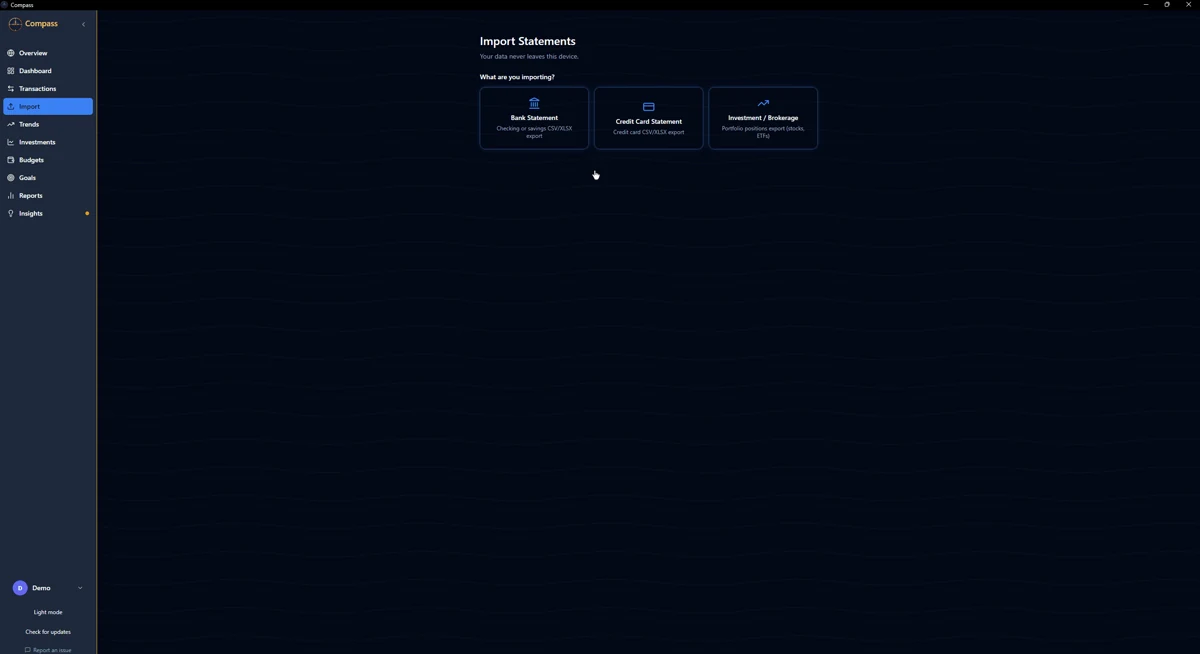
Open Import in Compass. The first screen asks what you're importing: a bank statement (checking or savings), a credit card statement, or an investment or brokerage export. Pick the one that matches, then choose your file. Batch import can take several files in one go.
Step 2: Check the column mapping
Compass suggests which column in your file holds each piece it needs: the date, the description and the amount. A bank preset, or a layout you saved last time, can fill this in for you. Check each choice against your file's header row, because a wrong match here flows into every transaction.
Date and amount styles it reads include two-digit years like 3/5/24, compact dates like 20260905, trailing minus signs, CR and DR suffixes, and European decimal commas like 1.234,56.
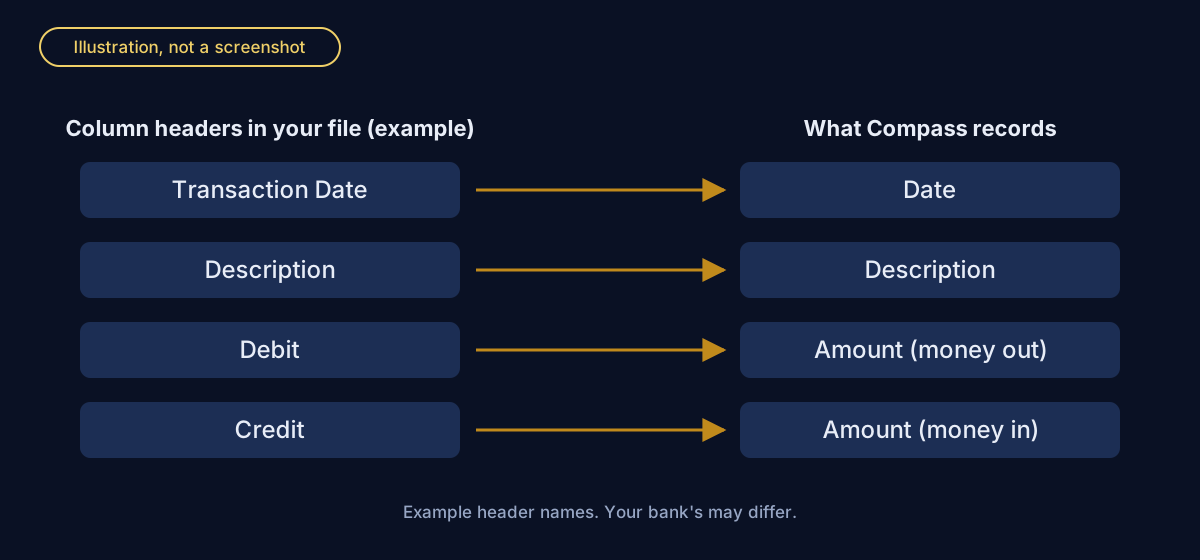
In this example, the file's Transaction Date column becomes the date, Description becomes the description, Debit becomes money out and Credit becomes money in.
Step 3: Check the amount layout and the signs
Compass asks how your file records amounts. There are three layouts.
| Your file has | Choose | Check that |
|---|---|---|
| One amount column, with the sign telling spending from money in | One amount column | Spending reads as money out. Flip the signs if it doesn't. |
| One amount column plus a column that says Debit or Credit | A column says "Debit" or "Credit" | Compass is reading direction from the label column. |
| Separate Debit and Credit columns | Two columns: Debit and Credit | Both columns are mapped. |
On the Amount step, every previewed amount is labeled with what Compass will record: money out or money in on a bank file, purchase / charge or payment / refund on a card statement. Files don't agree on signs, so purchases sometimes show up as money in. Flip the signs and the labels change with them.
When the headers say Debit and Credit (or Debit Amount and Credit Amount, or Debits ($) and Credits ($)), Compass detects both columns and maps them. Debits import as charges and credits as payments or refunds, and a 0.00 in the unused column doesn't hide the amount in the other one. Paired columns with other names, like Purchases and Payments, aren't detected, so choose Two columns: Debit and Credit yourself.
A layout saved earlier may read only one of a Debit and Credit pair. When the other column holds amounts, the Amount and Preview steps tell you how many rows would be left out and offer a one-click switch to read both.
Step 4: Review the preview and the import summary
Before you import, scan the preview. Dates should land in the right month, descriptions should be readable, and amounts should point the right way.
After the import, the summary keeps three counts apart. Rows left out because they had no usable date and amount, such as headers, totals and memo lines, are counted and named. Duplicates are transactions Compass recognized as already imported. Errors are listed separately from both. A skipped total line or repeated header is normal; a real transaction going missing isn't, so go back and check the mapping.
In a batch run with Auto-Import All, Compass pauses on any file whose Debit or Credit amounts the approved mapping would leave out, and opens that file in the normal wizard with the warning. Files already imported stay imported.
Then compare a few transactions, or the month's total, with the statement itself. Every figure in Compass depends on the file and the mapping, so verify anything important against your bank.
Step 5: Save the layout, then set up category rules
Two different things get saved, and it helps to keep them apart.
A saved layout remembers how one bank's file is arranged: which column is the date, which is the description and how the amounts work. The next file from that bank needs fewer clicks.
A category rule matches transaction descriptions and assigns a category, whichever file the transactions came from. Built-in rules handle common merchants. For the rest, correct a category and save it as a rule, or write one in the Rules Manager. Before you save, a live preview shows how many of your last 1,000 transactions the rule matches, with the matching text marked. Saving can also categorize transactions that are still uncategorized, and Compass tells you how many it changed.
Transfers and anything in the Excluded category never count as income or spending, and credit card payments are treated as transfers so they aren't counted twice.
Keep your data safe after importing
Compass encrypts its own database, not the statement files you downloaded. Store those like any other financial paperwork.
For a full backup, use Settings > Backup & Restore > Export Backup. The .compassbackup file it writes contains the database and the key that decrypts it, so keep it private and never share it. For a readable copy, export transactions as CSV from Transactions: choose All time, clear the filters and export, then repeat for each profile.
To remove one profile's data, use Settings > Erase this profile's data. Deleting the app data folder yourself removes everything.
For help with an import, open an issue on GitHub with the institution, the file type and the step that failed, plus the header row and a few rows of invented data. Never attach real statements, account numbers, databases, keys or backups.
Common questions
Can I import an Excel statement, or does it have to be CSV?
You can import either. Compass reads bank and credit card statements as CSV files or Excel .xlsx workbooks. When a workbook won't import, download the same transactions as CSV, or save a CSV copy from your spreadsheet app, and keep the original as it was.
Why are some rows missing after an import?
Compass leaves out rows that have no usable date and amount, such as headers, totals and memo lines, and counts them on the import summary separately from duplicates. Paired money-out and money-in columns with names other than Debit and Credit, like Purchases and Payments, need the two-column amount option chosen by hand. Compare the imported transactions with your statement before you rely on them.
Is a saved layout the same as a category rule?
No. A saved layout remembers which columns in one bank's file hold the date, description and amount, so the next file from that bank needs fewer clicks. Category rules work on transaction descriptions instead: each one assigns a category, whichever file the transaction came from.
Should I send my statement when I report an import problem?
No. Never attach real statements, account numbers, databases, keys or backups to an issue. Include the institution, the file type and the step that failed, plus the header row and a few rows of invented data.
Ready to try it?
Compass is free and open source, for Windows 10 and 11 with a macOS beta. Download Compass, or start in Demo Mode with sample data before you import your own statements.
See how Compass compares with Actual Budget, Quicken Simplifi and Firefly III, or read the security and privacy answers on encryption, backups and what Compass sends over the network.